A simple border
Give a portrait or landscape some breathing room. Start with an uncluttered template and adjust the surrounding space. Our white border guide explains padding, color and layout.
 Stamio.Get Stamio
STAMIO · IPHONE & IPAD
In Stamio, choose a template, select your photos, adjust the frame and export. Use a simple border for one picture, or save your own style for the next photo set.
Download on the App StoreFree basic templates · 2-photo batches · 1080p export
Premium features available with in-app purchases.
STEP BY STEP
Open Stamio and browse the template collection. Start with a minimal style for a plain frame, or choose a film or camera-details layout. Choose a basic template if you want to try the free workflow.
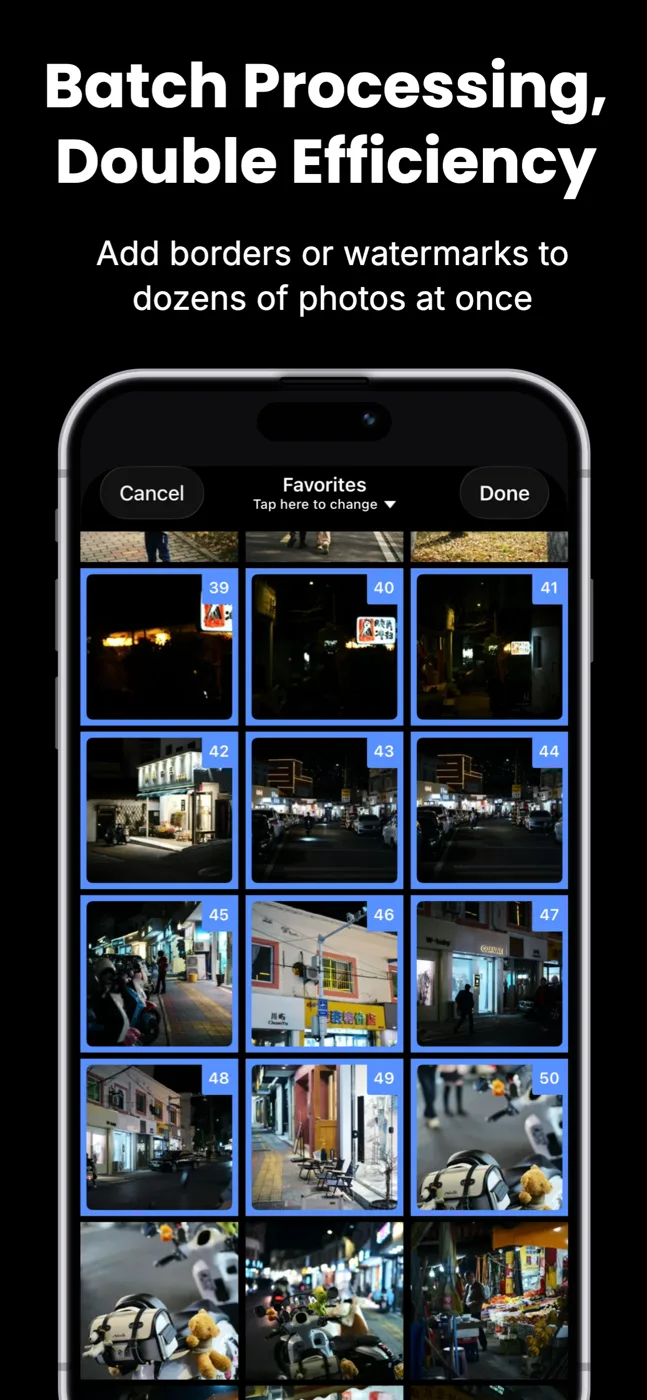
Select a photo from your library and preview it with the template. Start with one image while you adjust the look. Free batches support up to 2 photos; a paid unlock supports up to 50.
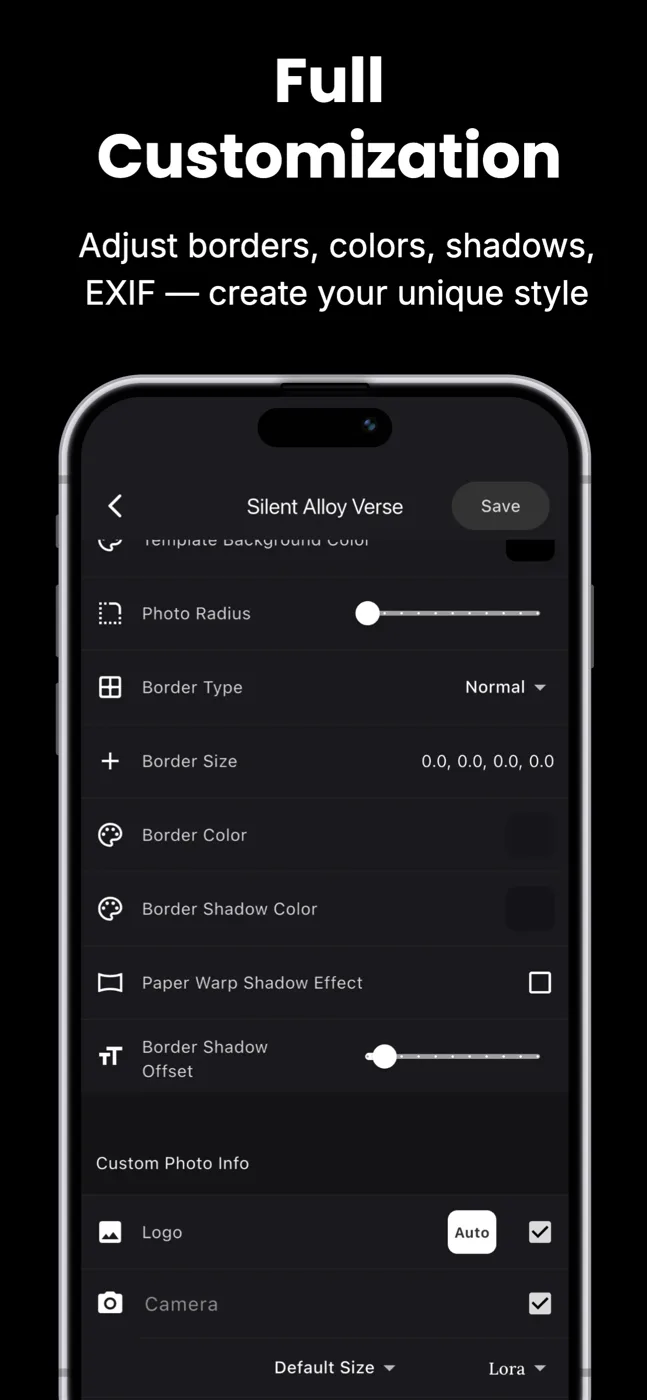
Open the template editor. Use Border Size and Border Color to change the edge around the photo. Template Padding Size and Template Background Color control the surrounding space. Save the edited template when the preview looks right.
Export the finished photo, then review it in your library before sharing. Free export is 1080p; 4K requires a paid unlock. Keep the source photo so you can make a different version later.
Stamio is useful when framing becomes part of your routine: save a template and reuse its border, colors and text on your next set. You do not have to recreate the look for each photo.
Preview both portrait and landscape images before exporting a mixed batch. The same settings can feel different on different compositions.
Yes. This guide uses the Stamio app for iPhone and iPad; it is not an online photo editor. If you only need a one-off border and prefer not to install an app, a browser-based border tool may suit you better.
Basic templates, batches of up to 2 photos and 1080p export are free. Premium features are available through a subscription or one-time purchase. Check the App Store for current pricing.
Yes. Save your custom template and apply it to future photos. Check each preview before exporting, especially when mixing image proportions.
Yes. Stamio is available for iPhone and iPad. The screenshots here show the iPhone interface.
Try a basic template first. Upgrade when you need premium templates, batches of up to 50 photos or 4K export.
Get Stamio for iPhone & iPadFree to download. Subscription and one-time purchase options are available in the app.