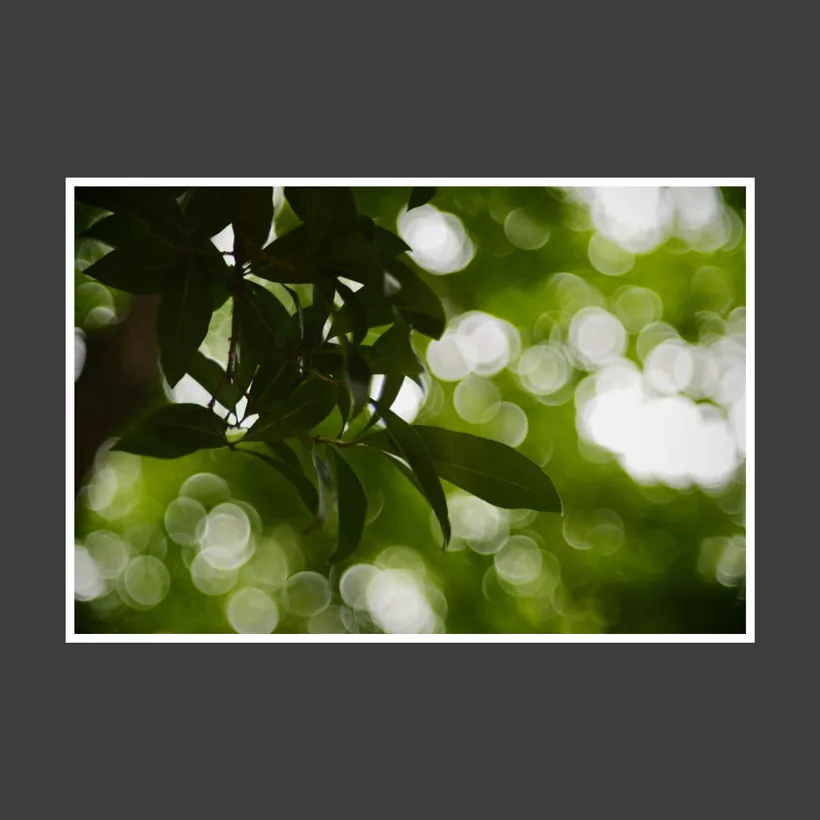
A narrow edge
Keeps attention on the image and separates it from a darker background. Try this when you want a subtle finishing touch.
 Stamio.Get Stamio
STAMIO · IPHONE & IPAD
To add a white border in Stamio, start with a minimal template, set the surrounding color to white and adjust its width. Preview the full photo, save the template and export on your iPhone or iPad.
Download on the App StoreFree basic templates · 2-photo batches · 1080p export
Premium features available with in-app purchases.
STEP BY STEP
Choose a plain template in Stamio and select your photo. An uncluttered layout makes it easier to judge the border without a logo or decorative text competing with the picture.
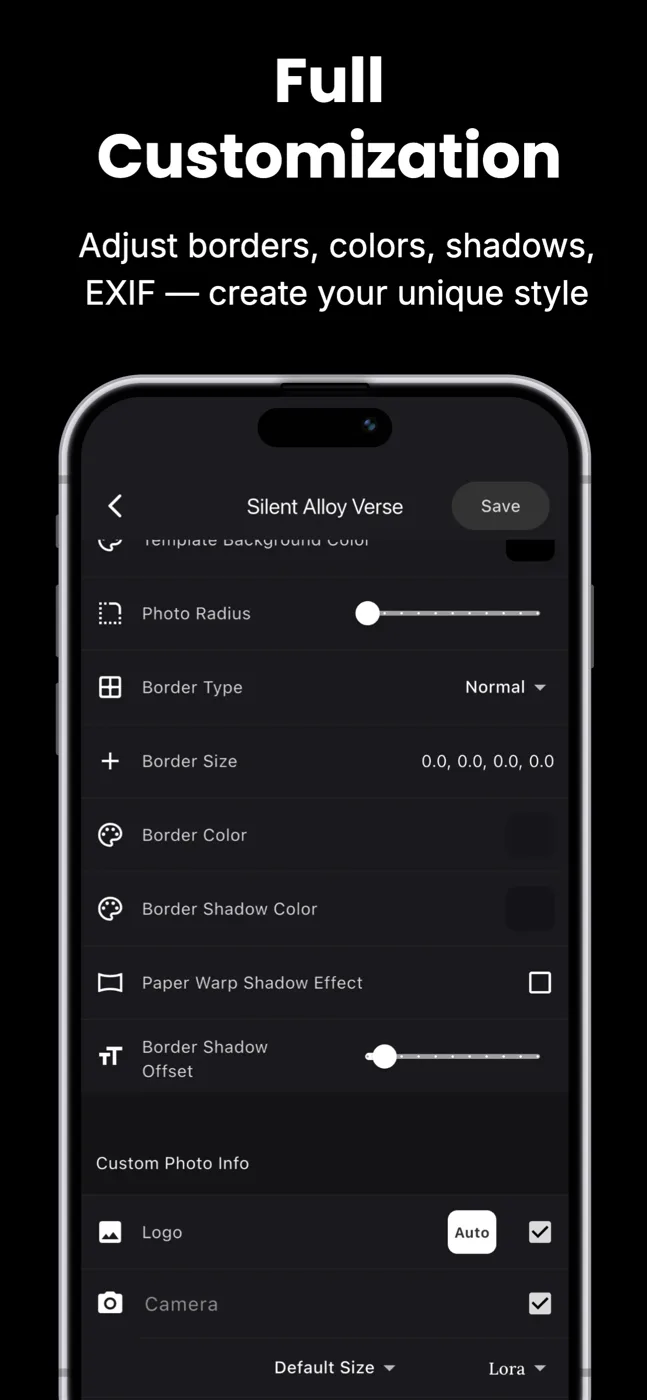
In the template editor, use Template Background Color for the canvas around the photo. Set it to white for a white surround. If your template also has a separate border, use Border Color to make that edge white too.
Change Template Padding Size to add space around the photo, and Border Size for the separate edge. Start with a narrow surround and increase it until the composition feels balanced. Review the top, bottom, left and right spacing in the preview.
Save your template so you can reuse the same style. Export the framed photo at 1080p for free, or use a paid unlock for 4K. Check the exported image before posting.
A border is the edge next to your photo. The canvas is the wider area around it. A template can use both, as in the foliage example above. For a continuous white surround, use white for both areas and avoid contrasting shadows.
For an Instagram post, the outer canvas and the photo inside it have separate proportions. Choose your intended canvas in Template Ratio (W:H), then check that the full subject remains visible.
Adding white space alone does not guarantee how every Instagram surface will display the result. Check the post preview and profile preview before publishing.
Save your settings once and reuse them for a coherent photo set. Stamio supports batches of 2 photos for free and up to 50 with a paid unlock.
No. This is a guide to using Stamio on iPhone and iPad. Install the app to edit your photos. For a single quick edit without installation, an online border tool may be a better fit.
Stamio includes basic templates, batches of up to 2 photos and 1080p export for free. Premium templates and features require a subscription or one-time purchase.
A surrounding canvas can leave room for the full image, but the result depends on the template and ratio you choose. Check the full composition in the preview before exporting.
Yes. Save the template and reuse it. Start with a free batch of 2; larger batches of up to 50 require a paid unlock.
Try a basic template first. Upgrade when you need premium templates, batches of up to 50 photos or 4K export.
Get Stamio for iPhone & iPadFree to download. Subscription and one-time purchase options are available in the app.